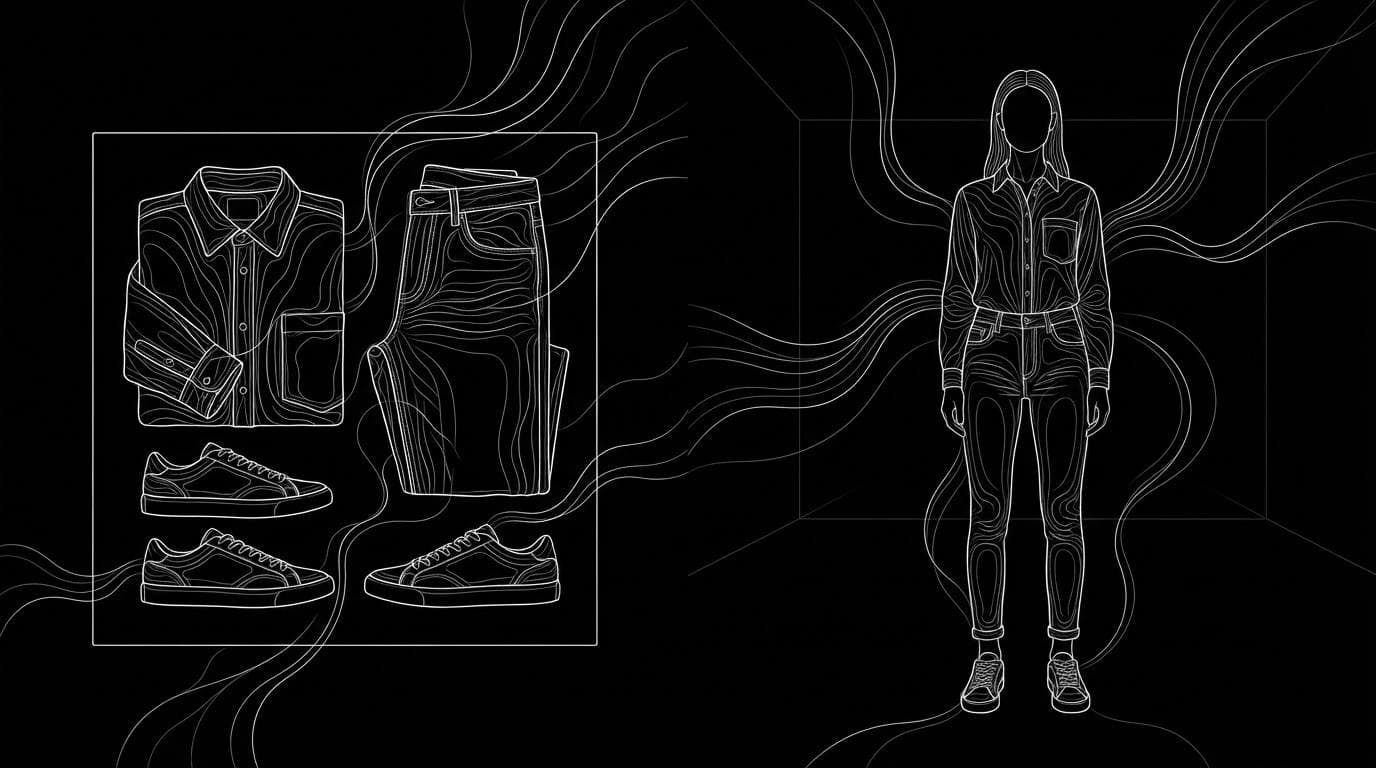
How do I turn flat-lay clothing photos into on-model shots?
How do I turn flat-lay clothing photos into on-model shots?
Updated October 23, 2026 · By Lauren Hayes
To turn flat-lay clothing photos into on-model shots, upload a clean overhead photo of the garment to an AI fashion model tool, pick a model and pose, and check every output against the real piece before you publish. Sloosh's Flat-Lay to On-Model Shoot Space takes one model photo and one outfit flat lay and returns four 3:4 studio images in four poses for 8.04 credits a run (Sloosh, Oct 2026). Dedicated fashion tools such as FASHN, Claid and On-Model do the same job, with APIs for catalog teams.
What does a good flat-lay input need?
A good flat-lay input is a sharp, evenly lit, overhead photo of the garment on a plain background, with every detail you want reproduced clearly visible. AI tools copy what they can see and guess the rest, so the photo sets the ceiling on quality.
- Shoot from directly above. An angled shot distorts the length and proportions the AI reads.
- Use a plain background. White, grey or a neutral board works. Patterned surfaces bleed into the garment.
- Lay the piece flat and smooth. Steam out creases, close zips and buttons, and straighten the hem and sleeves.
- Keep items apart. For a full outfit, lay out every piece without much overlap. Sloosh's own guidance for its flat-lay Space is "all items laid out from above on a plain background, not overlapping too much."
- Show the back if it matters. A back yoke, a print or a low back needs its own photo, or the AI will invent it.
- Light evenly. Soft, even daylight or a softbox keeps colour true. Hard shadows read as fabric folds.
How to turn a flat lay into on-model shots in Sloosh
Sloosh has two Spaces for this job: one for a complete outfit and one for a single garment with poses you choose. Both run from a form, and the credit cost shows on the Generate button before you spend anything.
[flat lay] + [model photo]
        |
        v
+--------------------------+    +--------------------+
| Flat-Lay to On-Model     |--->| 4 poses, 3:4       |
| Shoot (8.04 credits)     |    | full outfit        |
+--------------------------+    +--------------------+
[front + back of 1 garment]
        |
        v
+--------------------------+    +--------------------+
| On-Model Studio Shoot    |--->| hero + 1 per pose  |
| (2.01 credits)           |    | your aspect ratio  |
+--------------------------+    +--------------------+
Two Sloosh routes from flat photos to on-model images (Sloosh, Oct 2026).
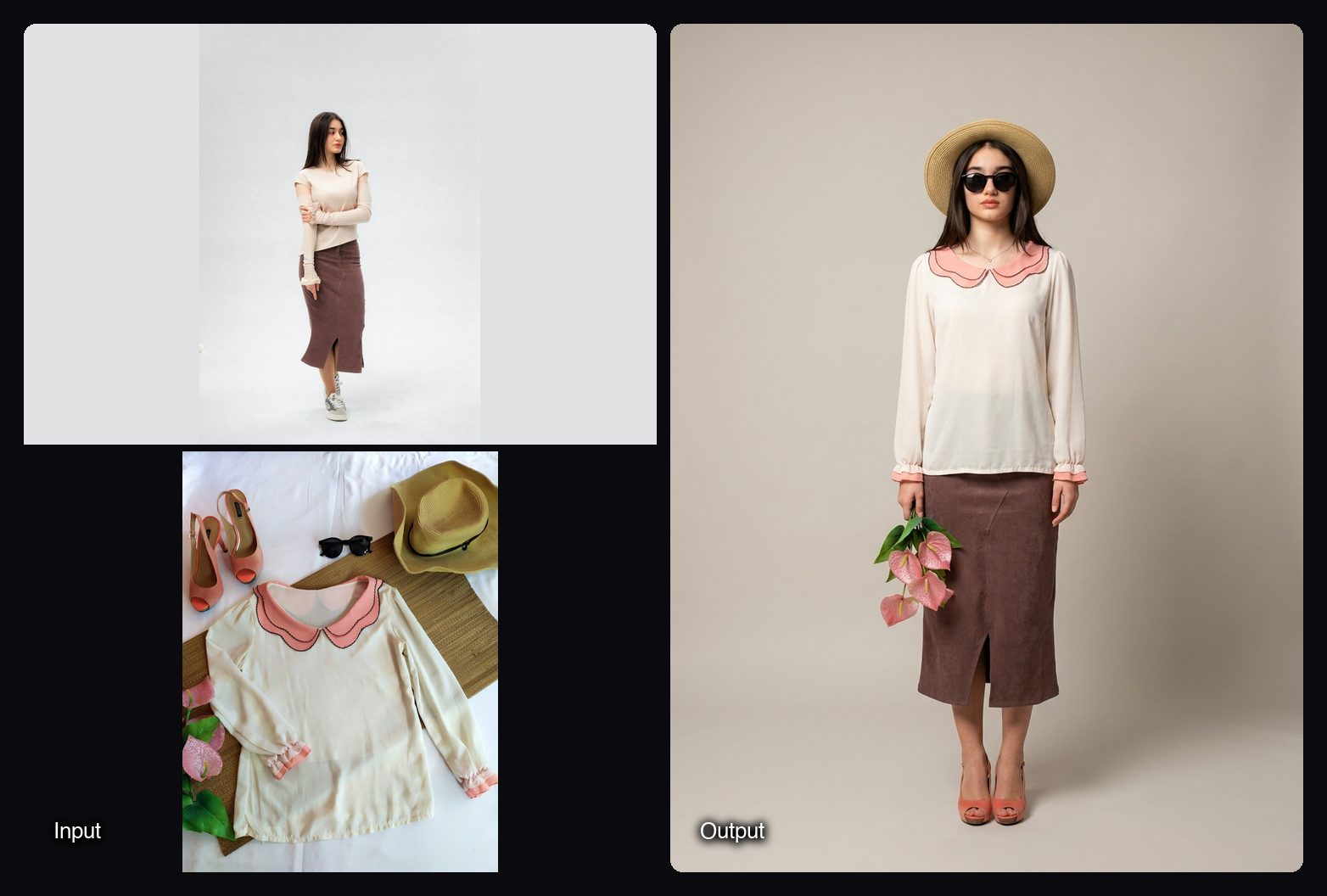
For a complete outfit (Flat-Lay to On-Model Shoot):
- Open Flat-Lay to On-Model Shoot and sign in.
- Upload a model photo and a flat lay of the full outfit. Both fields are required.
- Press Generate. The button shows the cost, 8.04 credits a run.
- Get four 3:4 studio catalogue images of the model wearing every piece, one per pose, in the Space's Generations tab.
For one garment with poses you pick (On-Model Studio Shoot):
- Open On-Model Studio Shoot.
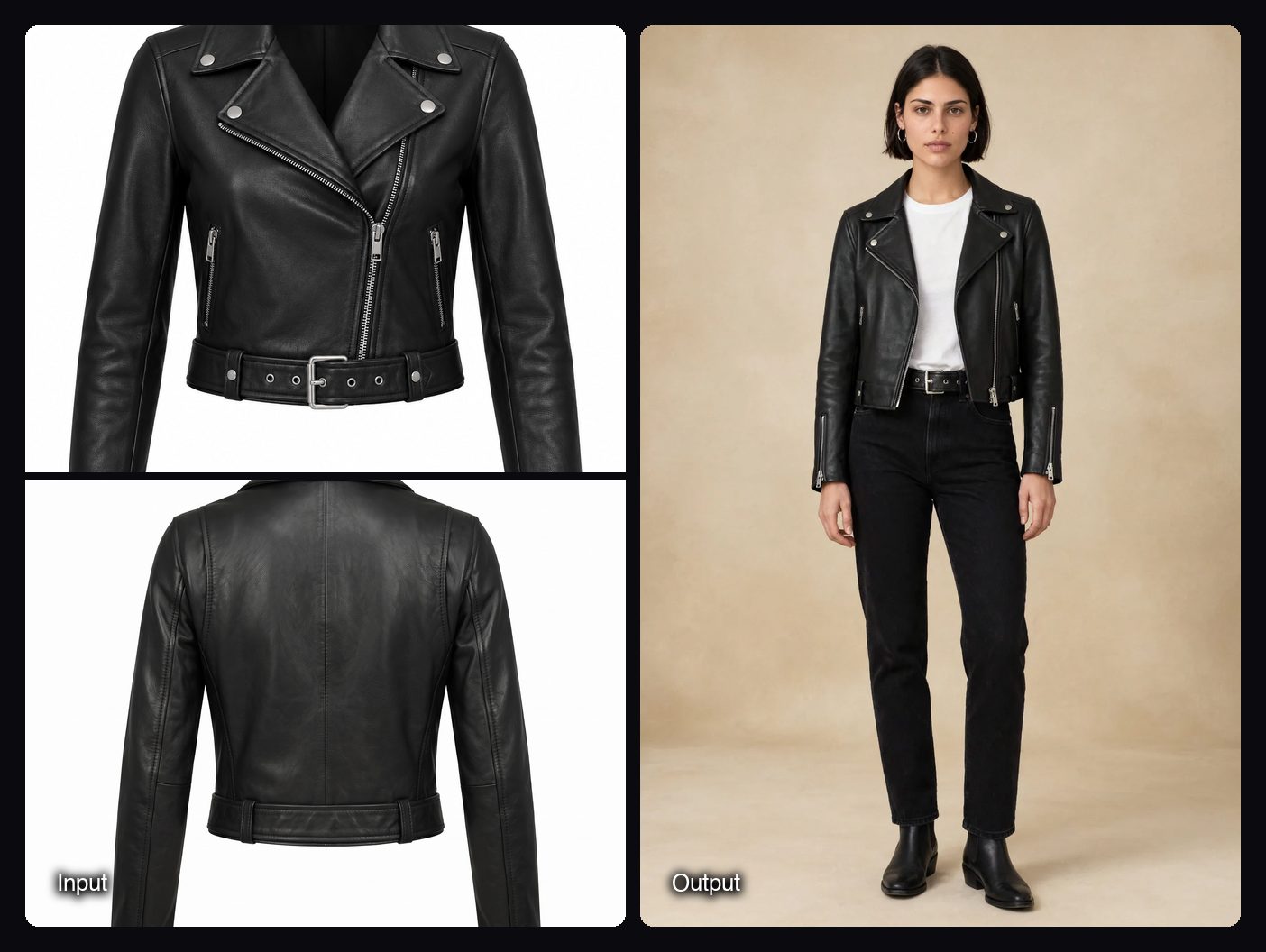
- Upload up to 10 photos of one garment. Front and back work best, and flat lays, ghost-mannequin or hanger shots are all accepted.
- Choose the product type, an aspect ratio, a model, a studio background and one or more poses. Add a styling brief for shoes, accessories and hair, or leave it empty for neutral styling.
- Generate. You get a full-length hero image plus one image per pose, for 2.01 credits a run. The Space's own guidance says 2:3 suits product pages.
If you already have a photo of a person and want them in one new piece, the Virtual Try-On Space keeps their face, pose and background and returns one 3:4 photo of them wearing the garment, for 2.01 credits a run.
Watch out for: the four poses in Flat-Lay to On-Model Shoot are fixed. To choose poses, use On-Model Studio Shoot, or remix the Space's canvas and write your own. Running many products at once uses Batch, which needs the Pro plan (up to 50 items) or the Max plan (up to 200 items). A new workspace gets 20 starter credits once, enough for two flat-lay runs.
What the Spaces produce
These are outputs from published templates. Recreate on any template loads its inputs so you can swap in your own garment.
How do you check garment fidelity in AI on-model shots?
Check each AI on-model image against the real garment, detail by detail, before it goes live. A wrong colour or a missing pocket on a product page leads to returns, and some marketplaces require images to show the item accurately.
| Check | What to compare | Common AI error |
|---|---|---|
| Colour | Output next to the flat lay on a calibrated screen | Shade drifts warmer or more saturated |
| Print and pattern | Scale, repeat and placement of the print | Small prints simplify or repeat wrongly |
| Trims | Buttons, zips, stitching, labels, count of each | A button too many or a zip that vanishes |
| Length and fit | Hem position on the body, sleeve length | Garment drawn longer or more fitted |
| Construction | Collar, cuffs, pockets, seams | Pockets added or removed |
| Back view | Back-facing poses against the back photo | Back invented from the front |
Fix a failed image by regenerating with a clearer photo or an added back view, rather than editing it by hand. Sloosh's Virtual Try-On notes that very detailed prints may simplify slightly, which is true of AI try-on in general.
Other ways to turn flat lays into on-model shots
Dedicated AI fashion tools and a traditional shoot are the main alternatives. The table compares what each vendor states on its own site.
| Tool | Best for | What it states | Checked on |
|---|---|---|---|
| Sloosh | Outfit or single-garment shoots from a form, plus video and other Spaces in one workspace | Flat-Lay to On-Model: 4 images, 8.04 credits; On-Model Studio Shoot: 2.01 credits; Creator plan $19/month for 195 credits | Oct 23, 2026 |
| FASHN | Fashion teams who want a dedicated app plus a try-on API | Product to Model, Model Swap and Try-On tools; 10 free credits to start; Basic plan from $19/month | Oct 23, 2026 |
| Claid | Catalog and marketplace teams that also need backgrounds and upscaling | AI Fashion Models turns a garment into on-model shots; native 4K; API available | Oct 23, 2026 |
| On-Model | High-volume flat-to-model and packshot jobs | Flat-to-model, model swap and packshots; 70+ AI models; batch and REST API | Oct 23, 2026 |
| Traditional shoot | Hero campaigns and fabrics AI struggles with | Real model, photographer and studio; most accurate, slowest | Oct 23, 2026 |
Check each vendor's pricing page before you commit, because plans and credit costs change often.
The manual route. Book a model and photographer, shoot every SKU on the body, then retouch. It remains the reference for fit and drape, and many brands still shoot hero looks this way and use AI for the long tail of colourways and basics.
Tips for better on-model results
- One garment, many angles. On-Model Studio Shoot accepts up to 10 photos of one piece. More angles give the AI less to guess.
- Match the model to the size range you sell. Pick a model whose build fits the garment's intended fit.
- Keep the backdrop consistent across a collection. Use the same studio background on every SKU so the grid on your category page looks like one shoot.
Frequently asked questions
Can AI turn a flat-lay photo into an on-model photo?
Yes. AI fashion model tools read the colour, fabric and shape of a garment from a flat-lay photo and draw it on a digital model. In Sloosh, Flat-Lay to On-Model Shoot returns four 3:4 studio images from one model photo and one outfit flat lay.
How much does it cost to turn a flat lay into on-model images?
In Sloosh, a Flat-Lay to On-Model Shoot run costs 8.04 credits and an On-Model Studio Shoot run costs 2.01 credits (Oct 2026). On the Creator plan, $19 for 195 credits a month, that is about $0.78 and $0.20 a run. Other tools charge by plan or credit, so check their pricing pages.
Can I choose the model's pose?
Yes, in On-Model Studio Shoot you pick one or more poses and get one image per pose plus a hero image. Flat-Lay to On-Model Shoot uses four fixed poses, which you can change only by remixing its canvas.
Do I need a back photo of the garment?
You need a back photo if you want back-facing poses to be accurate. Without it, the AI has to guess the back of the garment. Sloosh's On-Model Studio Shoot asks for front and back shots for this reason.
Can I use AI on-model images on Amazon or Shopify?
Yes, if the images show the product accurately and follow the marketplace's image rules. Sloosh lists Shopify, Instagram and Amazon as uses for its on-model Spaces and allows commercial use of what you create, as long as you have the rights to the photos you upload.
Can I process a whole collection at once?
Yes, with batch processing. In Sloosh, Batch runs one product per subfolder through a Space, on the Pro plan (up to 50 items) or Max plan (up to 200 items). FASHN, Claid and On-Model also offer APIs for catalog-scale work.
Bottom line
Shoot clean, overhead flat lays with a back view, run them through an AI fashion model tool, and check every image against the real garment before it goes live. In Sloosh, use Flat-Lay to On-Model Shoot for a full outfit in four poses, or On-Model Studio Shoot when you want to pick the model, backdrop and poses for one piece.
Turn your flat lays into on-model shots in Sloosh