How do I build a reusable AI image workflow without code?
How do I build a reusable AI image workflow without code?
Updated October 23, 2026 · By Tyler Bennett
To build a reusable AI image workflow without code, chain an input, a prompt and an image model on a visual canvas, test it once, then save it as something you can rerun with new inputs: Sloosh Spacelab publishes the canvas as a form with its own sloo.sh/s/ link, and every Sloosh workspace can publish one (Sloosh docs, Oct 2026). Figma Weave, Wireflow and ComfyUI offer node canvases too, and Zapier can trigger image generation from other apps.
The difference between a prompt you reuse and a workflow you reuse is structure: fixed steps, named inputs, and a front end other people can run.
What does a reusable AI image workflow need?
A reusable image workflow needs the same few parts in any tool. Get these right and anyone on your team can run it without knowing the prompt.
- Named inputs. The parts that change each run, such as a product photo or a scene name, become fields.
- A fixed prompt with variables. The words that stay the same live in the prompt; the inputs fill gaps such as
{{scene}}. - A pinned model and settings. The same model, aspect ratio and resolution every run, so results match.
- A finishing step. An upscale, a background removal or a resize to the size your channel needs.
- A way to run many. One run per scene, per product or per size, without pressing Generate each time.
- A simple front end. A form or link, so the person running it never sees the wiring.
 [ Product photo ]  --------------------+
                                        v
 [ Scene text ] --> [ Prompt {{scene}} ] --> [ Image Model ]
                                                  |
                                                  v
                                            [ Upscaler ]
                                                  |
                                                  v
                              Publish: form with 2 fields
A reusable image workflow in Spacelab: two inputs, one prompt, one model, one finishing step.
How to build a reusable image workflow in Sloosh Spacelab
Spacelab is Sloosh's node canvas. Each step is a node, you wire them together, and Publish turns the input nodes into a form. This build follows Sloosh's own recipe and takes a few minutes.
- Open Spacelab. Press Spacelab in the top bar to open a new canvas. You can also type what the workflow should do and Sloosh builds a first version for you.
- Add the inputs. Add an Image Input and name it Product photo. Add a Text Input and name it Scene. Each node's name becomes its field label on the form.
- Add a Prompt with a variable. Models in Spacelab have no prompt box, so the prompt is its own node. Write the fixed part, press Add Variable, name it scene and wire the Scene input into it.
- Wire an image model. Add an Image Model, pick Nano Banana Pro at 4:5, then wire the Prompt into its Prompt port and the product photo into a reference image.
- Add a finishing step. Add an Upscaler after the model. It enlarges the image 2x, 4x or 6x with Topaz.
- Run it once. Run, at the bottom right, shows what one run costs before you press it. Change one word and run again until you like the result.
- Publish. Publish's Details tab can autofill the name and description from your canvas. In the Form tab, mark each field Required or Optional. The published Space gets a
sloo.sh/s/link.
This is the prompt Sloosh's recipe uses, so the product stays the same in every scene:
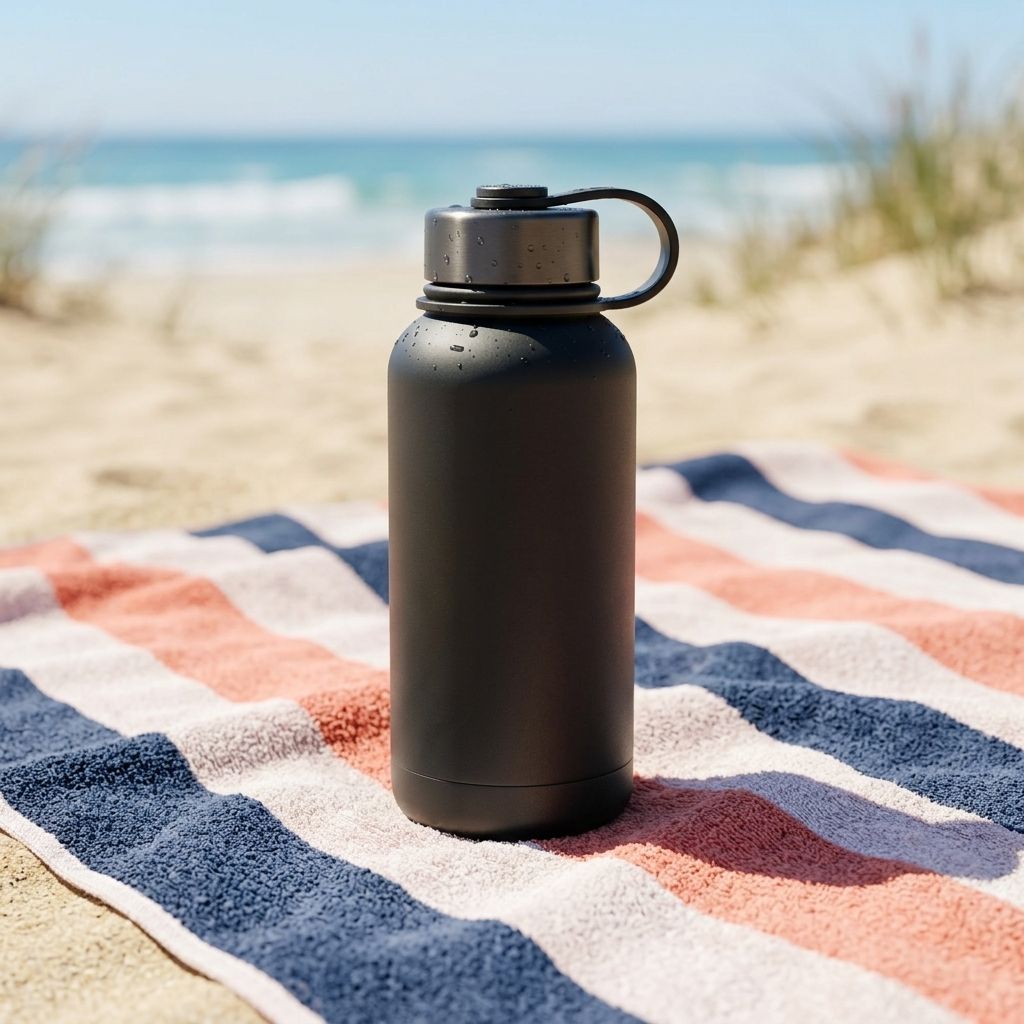
The product in the image, placed in {{scene}}. Keep its colour, shape and label exactly as they are. Soft natural light.
Make it run many images at once
- Several scenes per product: put a Text Iterator before the Prompt with one scene per value. Bundle collects the results and Download saves them all with one click.
- One scene for many products: use an Image Iterator over the product photos, wired into the model's reference image.
- Retry bad images automatically: turn on Enable eval in the Image Model's advanced settings. It checks each image and regenerates a rejected one, up to 3 attempts in a run.
- Many products through a published Space: turn on Batch above the form and pick a folder with one subfolder per product (Pro or Max plan).
Share it with your team
A published Space goes to your workspace, so your team runs it from the form. Tick Also publish to community to list it for everyone; a public Space needs at least one sample output. Tick Hide canvas from people who use this space to stop others opening or remixing the canvas. To share the wiring itself, Share gives a read-only sloo.sh/w/ link that signed-in viewers can copy and edit.
Watch out for: iterators multiply, so two iterators of four values make 16 runs, and Spacelab refuses a run above 64. Every model node costs credits each pass. Publish refuses a canvas with no form field or nothing that ends in a result. Batch mode needs the Pro or Max plan. There is no public Sloosh API yet, so code cannot call your workflow; AI agents can run it over MCP.
Other no-code ways to build an image workflow
Each tool below was checked on its own site. They differ in how technical the canvas is and who can run the result.
| Tool | How you build it | Who runs it after | Best for | Checked on |
|---|---|---|---|---|
| Sloosh Spacelab | Node canvas; publish as a Space | Anyone with the form; Batch; AI agents over MCP | Teams that want a form in front of the workflow | Oct 23, 2026 |
| Figma Weave | Node canvas with many image and video models and editing tools | A simplified app-style UI generated for the team | Design teams that want editing tools such as inpainting and relighting in the flow | Oct 23, 2026 |
| Wireflow | Shared board where each model is a node | Board links, Claude, or Wireflow's API | Ad teams rerunning boards with new products and hooks | Oct 23, 2026 |
| ComfyUI | Node canvas with every parameter exposed | Whoever opens the workflow; local (Comfy Desktop) or Comfy Cloud | Technical users who want full control and local hardware | Oct 23, 2026 |
| Zapier | Trigger plus a ChatGPT "Generate An Image" action | Runs when the trigger fires in another app | Image generation started by a form, sheet or CRM event | Oct 23, 2026 |
Check pricing on each vendor's site, since plans and credit costs change often.
Frequently asked questions
Do I need to code to build an AI image workflow?
No. Node canvases such as Sloosh Spacelab, Figma Weave and Wireflow let you drag nodes and wire them together. In Spacelab, you can also describe the workflow in words and Sloosh builds a first canvas for you to edit.
How do I let teammates use my image workflow without seeing the prompt?
Publish it behind a form. In Sloosh, Publish turns input nodes into form fields while the Prompt stays fixed, and Hide canvas from people who use this space stops others opening or remixing the canvas behind it.
Can people who run my workflow change part of the prompt?
Yes. In Spacelab, wire a Text Input into a Prompt variable. The Prompt never becomes a form field, but the Text Input does, and its words fill the {{variable}} when the Space runs.
Can one AI image workflow make several images per run?
Yes. In Sloosh Spacelab, a Text Iterator or Image Iterator runs everything after it once per value, so three scene names make three images. Spacelab warns above 16 passes and refuses a run above 64.
Do I need a paid plan to publish a workflow in Sloosh?
No. Every Sloosh workspace can publish a Spacelab canvas as a Space. Each run still costs credits for the model nodes it calls, and a new workspace gets 20 starter credits once. Batch runs need the Pro or Max plan.
Bottom line
A reusable image workflow is named inputs, a fixed prompt with variables, a pinned model, a finishing step and a front end. Sloosh Spacelab builds all five without code and publishes them as a form your team can run one at a time, in batches or through an AI agent. Figma Weave and Wireflow suit design and ad teams on their own canvases, ComfyUI suits technical users, and Zapier suits generation triggered by other apps.
Build your first image workflow in Sloosh