How do I put my product into a lifestyle scene with AI?
How do I put my product into a lifestyle scene with AI?
Updated October 23, 2026 · By Lauren Hayes
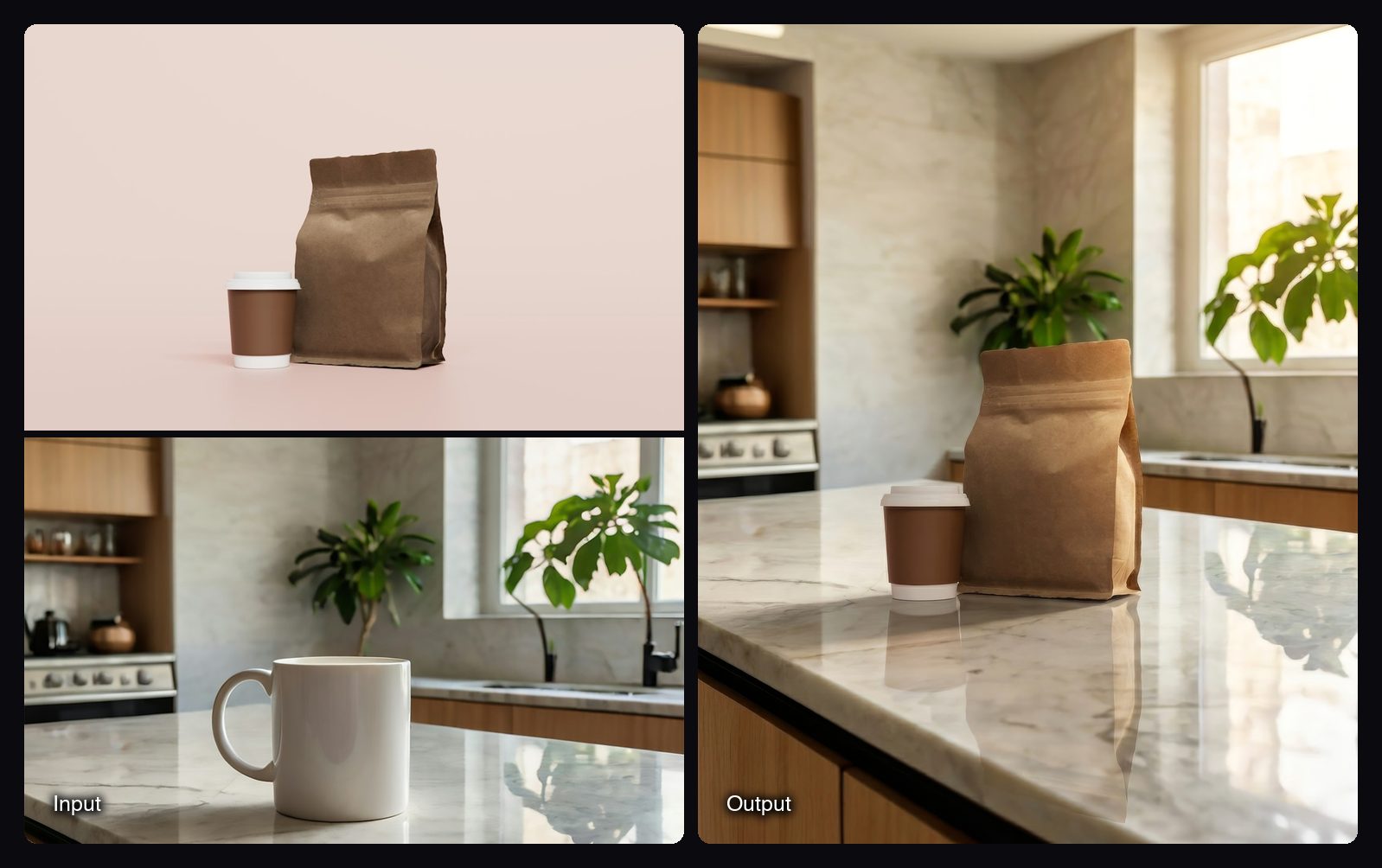
To put your product into a lifestyle scene with AI, start from a sharp photo of the real product, give the tool a scene (a photo or a prompt), and make sure the light and shadows are matched to that scene rather than pasted on. Sloosh's Product in Scene + Relight Space does this from a product photo and a scene photo, relighting the product to match and returning a 4:5 image upscaled 2x for 2.76 credits a run (Sloosh, Oct 2026). Photoroom, Pebblely, Flair and Claid also generate lifestyle scenes, mostly from prompts or templates.
What makes an AI lifestyle product shot believable?
A lifestyle shot looks real when the product, the surface and the light agree. Most AI fakes fail on one of the checks below, whatever tool you use.
- The real product, unchanged. Generate the scene around your photo, not a new product from a prompt. Check the label, colour and proportions against the original.
- Light from the same direction. If the window in the scene is on the left, the highlight on the product must be on the left too.
- Contact shadows. The product needs a soft shadow where it touches the surface. A product with no shadow looks like it floats.
- Believable scale. A candle should be candle-sized next to a mug. Pick scenes with familiar objects so shoppers can read the size.
- One surface to sit on. A counter, shelf, table or floor gives the product a place in the scene.
- A scene that fits the buyer. Show the kitchen, desk or bathroom where the product is used.
[product photo] --+
                  +--> [place on surface]
[scene photo] ----+          |  scale, contact shadow
                             v
                       [relight]
                             |  light direction, colour
                             v
                       [check vs real product]
                                label, colour, shape
A lifestyle composite needs placement, relighting and a final check against the real product.
How to put a product into a lifestyle scene in Sloosh
Sloosh is an AI video and image studio for creators, filmmakers and brand teams. Its Product in Scene + Relight Space places a packshot into a scene photo and relights it in one run.
- Open the Space. Go to sloosh.ai/spaces/product-in-scene-relight and sign in.
- Upload your product photo. Use a sharp packshot. The Space's FAQ says the prompt locks the shape, label and colours, but small text can still soften.
- Upload a scene photo. Pick a clear photo with an empty surface where the product can sit, such as a counter, table or shelf.
- Press Generate. The button shows the cost first: 2.76 credits a run (Oct 2026).
- Download the result. You get one 4:5 image of your product in the scene, upscaled 2x, in the Space's Generations tab.
Other Sloosh Spaces for lifestyle scenes
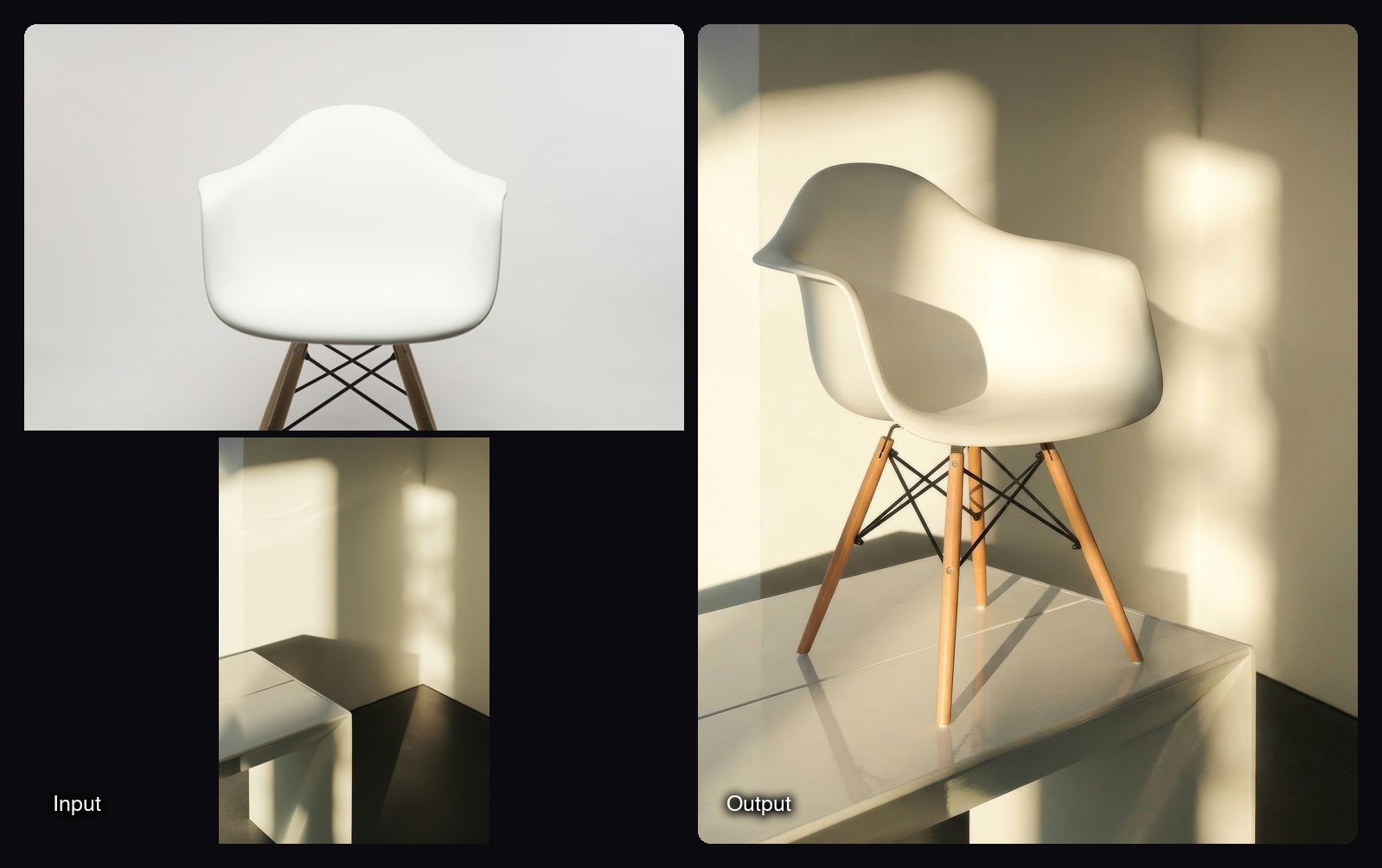
- Product in Room for furniture and decor. Upload a room photo and a packshot, and the product replaces the closest matching piece at the right scale with matching light. One 16:9 image, 2.01 credits a run.
- Style Match when you have a mood, not a scene. Upload your product and any image whose look you like, and the product is reshot in its colour grade, lighting and set. One 4:5 image, 2.01 credits a run.
- Product Placement Video for motion. It places and relights the product, then animates a 6-second vertical video with a slow push-in, made with MiniMax H3 Max. 4.94 credits a run.
Watch out for: each run returns a single still (4:5 for Product in Scene + Relight and Style Match, 16:9 for Product in Room), so a set of scenes means several runs. You need your own scene photo, since these Spaces do not invent the room from a prompt. For prompt-only scenes, use an image model in Sloosh Studio such as Nano Banana Pro, which Sloosh recommends for product photography.
Other tools for AI lifestyle product photos
Several tools generate lifestyle scenes. The main difference is whether you bring the scene or the AI invents it.
| Tool | Best for | How you set the scene | Checked on |
|---|---|---|---|
| Sloosh Product in Scene + Relight | Matching your product to a real scene photo, with relighting | Upload a product photo and a scene photo; 4:5, upscaled 2x; 2.76 credits a run | Oct 23, 2026 |
| Photoroom Product Staging | Sellers who also need cutouts, batch edits and marketplace formats | AI-generated lifestyle scenes; batch processing and an API are offered | Oct 23, 2026 |
| Pebblely | Quick scenes from ready-made templates | 100+ templates such as "standing on a wooden table"; bulk generation | Oct 23, 2026 |
| Flair | Art-directing a scene by hand | Drag-and-drop canvas with props, then AI renders the scene | Oct 23, 2026 |
| Claid | Lifestyle scenes in 4K at catalogue scale | AI Photoshoot places products into editorial and lifestyle scenes; API available | Oct 23, 2026 |
Manual route. In Photoshop or a similar editor: cut out the product, place it on a stock or shot background, paint a contact shadow, then match colour and light with adjustment layers. It gives full control and takes the most time per image.
Tips for better AI lifestyle scenes
- Shoot the product at the scene's angle. A product shot straight on will look wrong on a table seen from above.
- Match the lens feel. A close, shallow-focus packshot suits a close, blurred background.
- Leave space in the scene. An empty surface gives the product a clear place to sit.
- Generate several scenes, keep one per use. A kitchen for the product page, a gift setting for ads, a flat lay for social.
- Compare with the original. Hold the result next to the real packshot and check the label, colour and cap or lid shape.
Frequently asked questions
Can AI put my real product into a lifestyle photo?
Yes. Tools such as Sloosh, Photoroom and Claid place your own product photo into a scene instead of generating a new product. Check the label and colours on every result, because small text can soften.
Do I need a scene photo to make an AI lifestyle shot?
Not always. Prompt and template tools such as Pebblely and Photoroom generate the scene for you. Sloosh's Product in Scene + Relight and Product in Room use your own scene photo, which keeps the setting real and on-brand.
How do I stop an AI product photo from looking pasted on?
Match the light direction and add a contact shadow where the product touches the surface. Relighting tools do this automatically; Sloosh's Product in Scene + Relight relights the product to match the scene's light direction, colour and shadows.
How much does an AI lifestyle product photo cost?
In Sloosh, a Product in Scene + Relight run costs 2.76 credits, and Product in Room or Style Match cost 2.01 credits (Oct 2026). On the Creator plan ($19 for 195 credits a month), that is roughly $0.20 to $0.27 per image. A new workspace also gets 20 starter credits once.
Can I turn an AI lifestyle photo into a video?
Yes. Sloosh's Product Placement Video Space places and relights the product in your scene, then animates a 6-second vertical video with a slow push-in, for 4.94 credits a run (Oct 2026). You get both the still and the MP4.
Bottom line
To put a product into a lifestyle scene, keep the real product photo and get the light and shadow right. If you have a scene photo, Sloosh's Product in Scene + Relight places and relights the product in one run; for template or prompt-made scenes, Photoroom, Pebblely, Flair and Claid are solid options.
Put your product in a scene with Sloosh